Running Hatchling
Previous: Docker Setup | Next: Chat Commands
This article is about:
- Starting and configuring Ollama Docker containers
- Building and running Hatchling with Docker Compose
- Configuration options for optimal performance
This section assumes you have followed the Docker & Ollama setup.
Running Ollama with Docker
Using CPU or GPU for the LLM
- Windows/Linux CPU only & MacOS on Apple Silicon:
bash
  docker run -d -v ollama:/root/.ollama -p 11434:11434 --name ollama ollama/ollama
- Windows/Linux NVIDIA GPU support:
bash
  docker run -d --gpus=all -v ollama:/root/.ollama -p 11434:11434 --name ollama ollama/ollama
- Windows/Linux AMD GPU support:
bash
  docker run -d --device /dev/kfd --device /dev/dri -v ollama:/root/.ollama -p 11434:11434 --name ollama ollama/ollama:rocm
[!Note] Troubleshooting: If you encounter issues with the
/dev/kfdor/dev/dridevices, try running the command with the--privilegedflag:docker run -d --privileged --device /dev/kfd --device /dev/dri -v ollama:/root/.ollama -p 11434:11434 --name ollama ollama/ollama:rocm
Checking that GPU support is enabled as expected
- Go to the
Containerstab in Docker Desktop (arrow 1) and select your Ollama container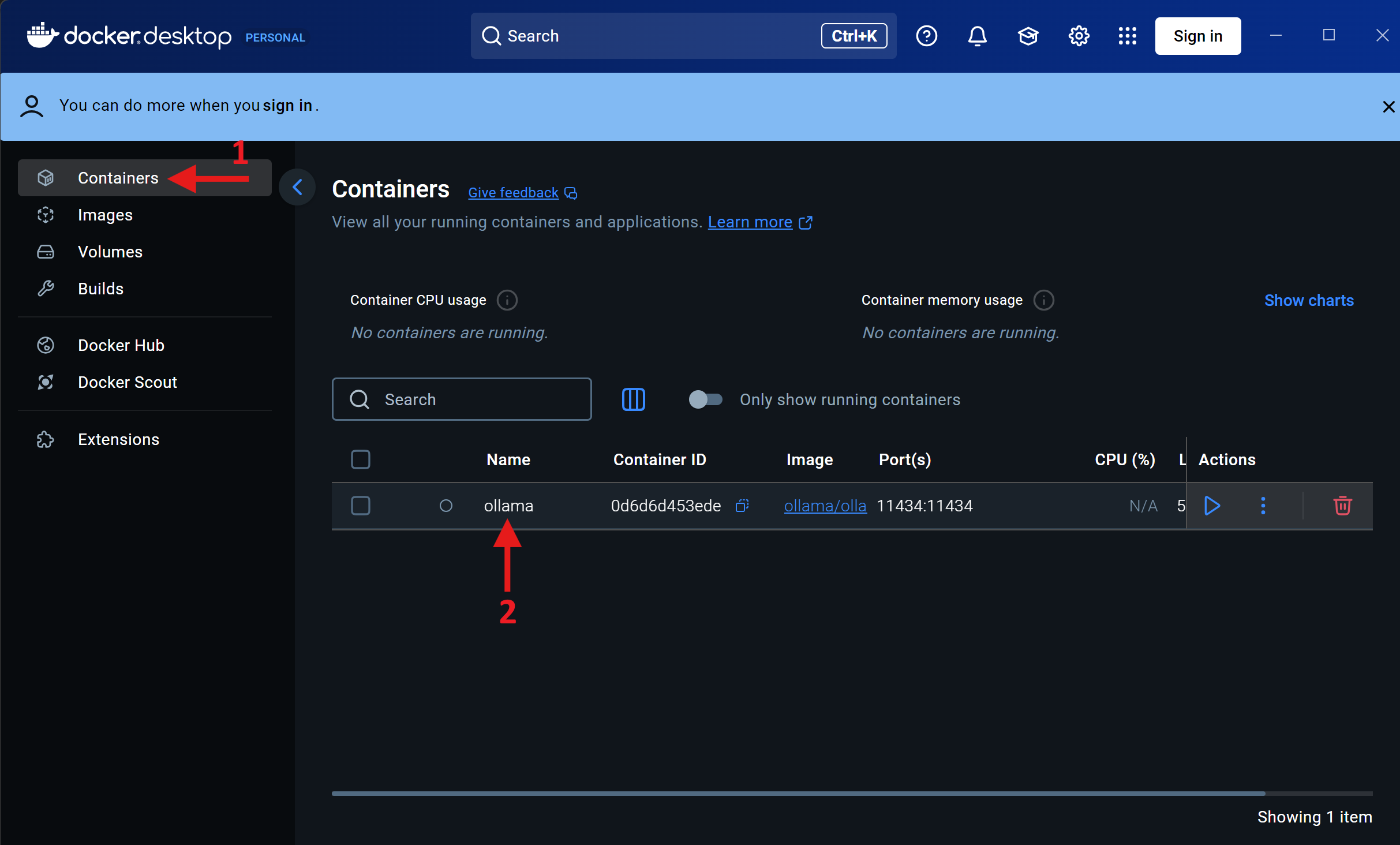
-
Check the logs and search for a message indicating GPU detection, similar to:
txt msg="inference compute" id=GPU-a826c853-a49e-a55d-da4d-804bfe10cdcf library=cuda variant=v12 compute=8.6 driver=12.7 name="NVIDIA GeForce RTX 3070 Laptop GPU" total="8.0 GiB" available="7.0 GiB"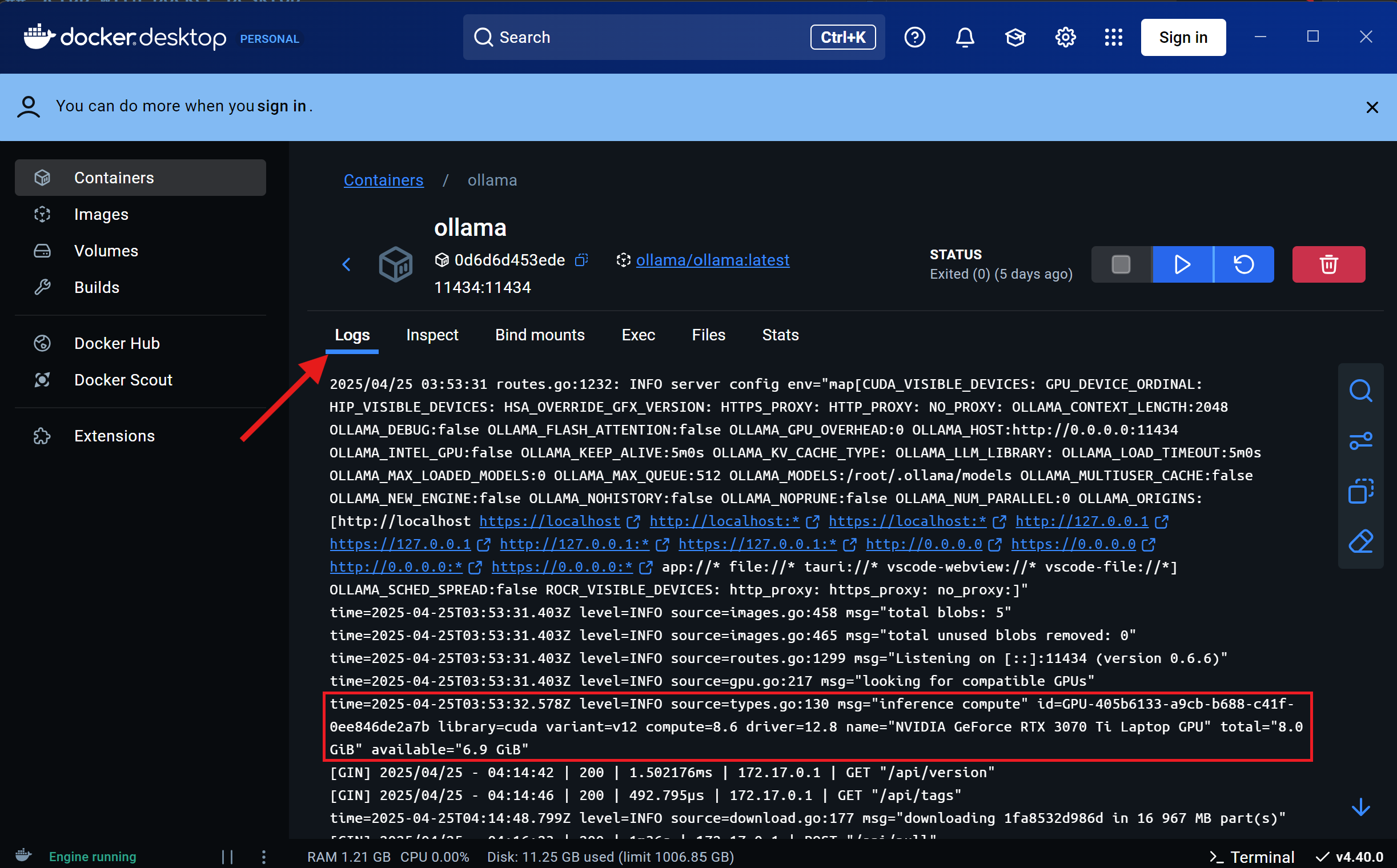 - Alternatively, run the command
 docker logs ollamaand search for the message in the output.
For more detailed instructions and options, refer to the official Ollama Docker documentation.
Running Hatchling with Docker
Get the source code
At this step, you will be downloading the content of Hatchling. Currently, we are only using GitHub's interface to install Hatchling.
- Open a terminal
- Navigate to a directory where you want Hatchling to be:
bash
  cd path/to/the/directory/you/want
- Then, use Git, to retrieve the source code
bash
  git clone https://github.com/CrackingShells/Hatchling.git
Navigate to the docker directory of Hatchling
cd ./Hatchling/docker
Copy the .env.example file to .env
cp .env.example .env
Install Hatchling by building the code
bash
   docker-compose build hatchling
The step has been observed to take as little as 50 seconds and as much as 10 minutes on different setups. The time it takes varies depending on the computer's hardware, but also on the speed of your internet connection.
Start Hatchling
Configure Hatchling's Environment
Modify the variables in the .env file to suit your needs.
Configuration
Initial configuration is managed through environment variables or a .env file in the docker directory. Remember that this configuration will be super-seeded by the user settings once you have launched Hatchling once.
| Variable | Description | Default |
|---|---|---|
OLLAMA_IP |
The IP address for where Ollama was attached to | localhost |
OLLAMA_PORT |
The port at which Ollama is listening to | 11434 |
OLLAMA_MODEL |
Default LLM model to use | llama3.2 |
OPENAI_MODEL |
Default OpenAI model to use | gpt-4.1-nano |
OPENAI_API_KEY |
API key for OpenAI | A dummy value |
LLM_PROVIDER |
Which LLM provider to use (ollama or openai) |
ollama |
HATCH_HOST_CACHE_DIR |
Directory where Hatch environments and cache will be stored on the host machine | ./.hatch |
HATCH_LOCAL_PACKAGE_DIR |
Directory where local packages are stored on the host machine to be accessible in the container | ../../Hatch_Pkg_Dev |
HATCHLING_SOURCE_DIR |
Directory where Hatchling source code is located in the container | /opt/Hatchling |
HATCHLING_DEFAULT_LANGUAGE |
Default language for Hatchling's UI | en |
NETWORK_MODE |
Docker network mode | host |
LOG_LEVEL |
The default log level at start up | INFO |
USER_ID |
User ID for the container user (set on Linux to match host user for permissions) | 1002 |
GROUP_ID |
Group ID for the container user (set on Linux to match host group for permissions) | 1002 |
USER_NAME |
Username for the container user (set on Linux to match host name) | HatchlingUser |
OLLAMA_IP & OLLAMA_PORT
You may need to adjust OLLAMA_IP and OLLAMA_PORT to match where your Ollama container is hosted:
- If Ollama is running on the same computer as Hatchling and you did not change the port earlier, then you don't need to change that variable either.
- If Ollama is running on a different computer as Hatchling (e.g. your GPU server), then you must adapt
OLLAMA_IPandOLLAMA_PORT.
[!Note] You cannot set the value for the
ipwhen launching Ollama. It seems to be listening to everything by default (0.0.0.0) meaning you can reach the container by rather setting OLLAMA_IP to theipof your GPU server (or any remote machine where it is running).
OLLAMA_MODEL
For Hatchling, one can change OLLAMA_MODEL to any model under the category tools
[!Warning] Be mindful of the size of the LLM. Models larger than your GPU's memory (VRAM on GPU cards, or the partition of the shared memory that can be allocated to GPU tasks on Apple Silicon), will not run smoothly. You can check the actual size of a model when selecting a model on the within the list
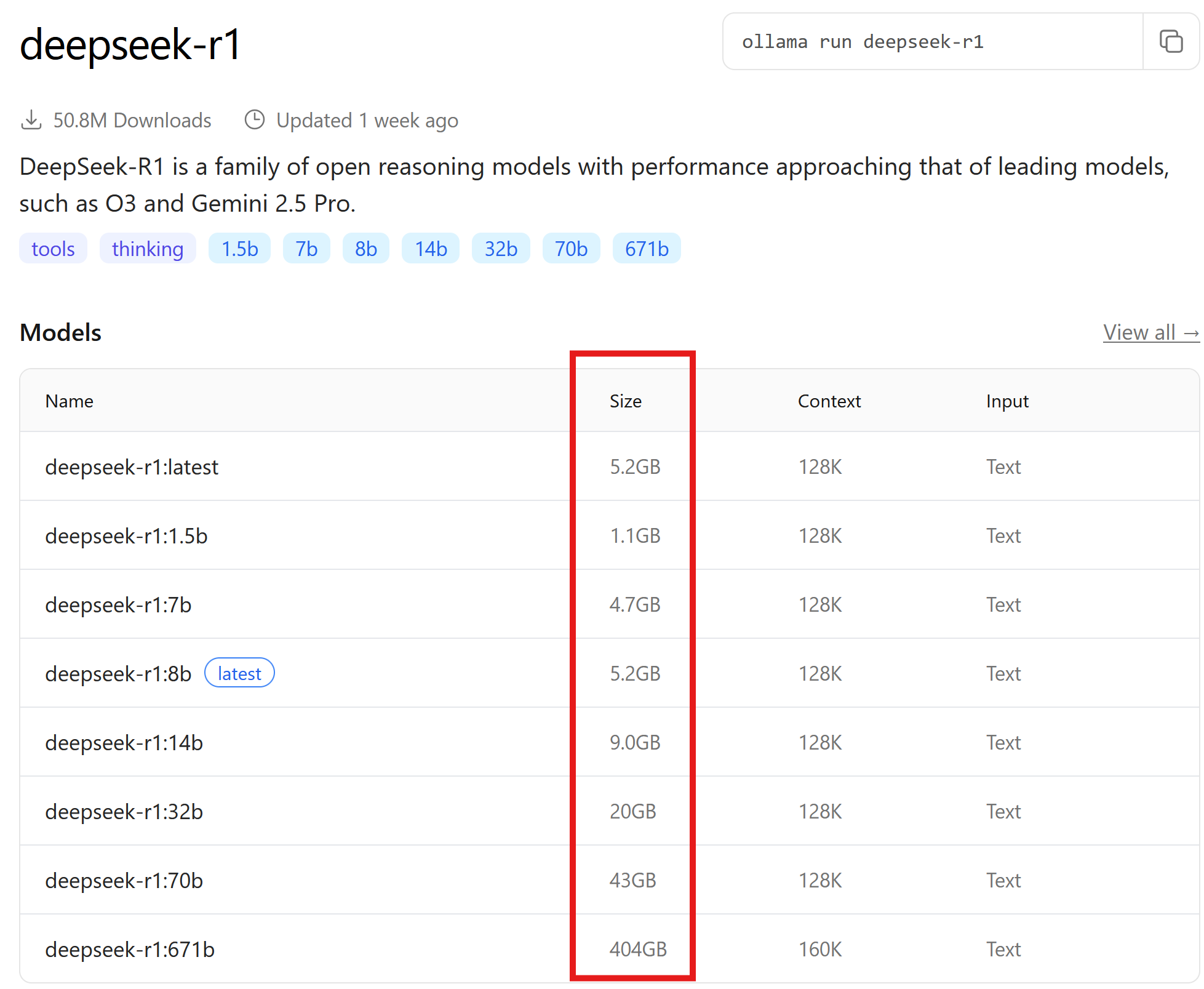
For example, earlier the GPU's available memory was indicated to be 7GB. Therefore, this GPU can load up to deepseek-r1:8b, which happens to be the default (marked as latest).
Ollama
- On Docker Desktop, navigate to your containers (arrow 1), and press the play button (arrow 2)
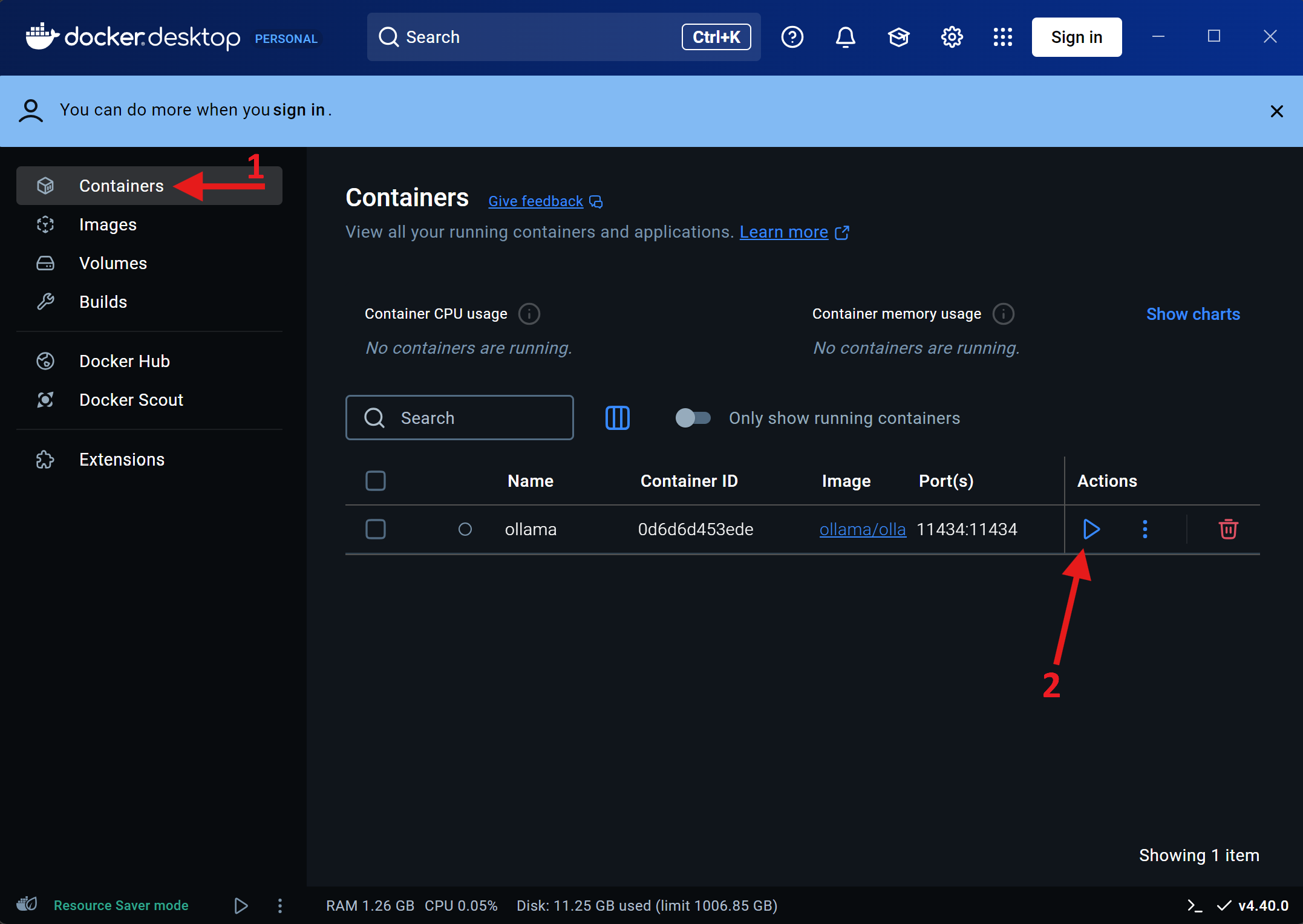
- Alternatively, run the command
docker start ollama
Hatchling
Running Hatchling (recommended approach):
By default, the Hatchling container does not start the application automatically. This gives you flexibility to inspect or run any command inside the container.
First time:
# From the docker directory in your project
docker-compose up -d hatchling
This starts the container in the background and keeps it running.
To enter the container and start Hatchling as the intended user:
docker-compose exec --user HatchlingUser hatchling bash
# Then, inside the container:
hatchling
[!Note] If you replaced the value of
USER_NAMEin the environment file, you can replaceHatchlingUserwith the actual value. So the command becomesdocker-compose exec --user <USER_NAME> hatchling bash
If Hatchling successfully connects to Ollama, it will download the specified LLM model. This will be shown by progress messages. Download time depends on the model size (the default model llama3.2 is about 2GB).
Here is a screenshot of what Hatchling typically looks like right after start up:
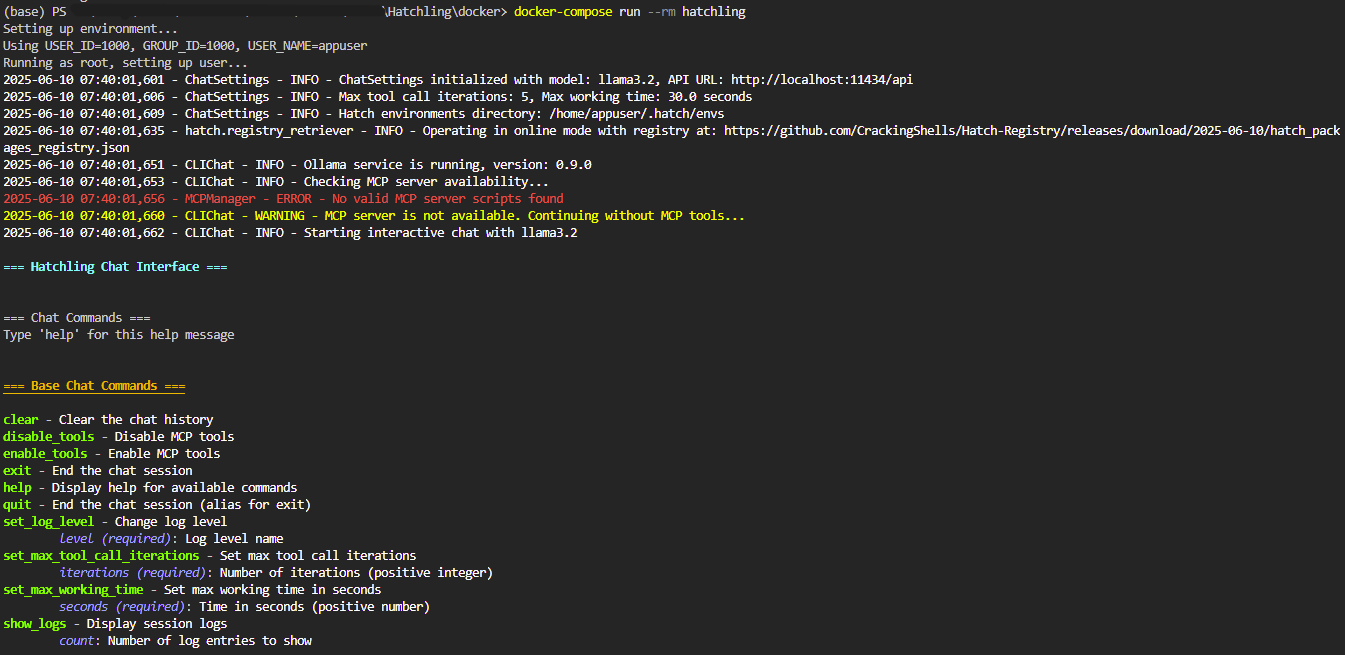
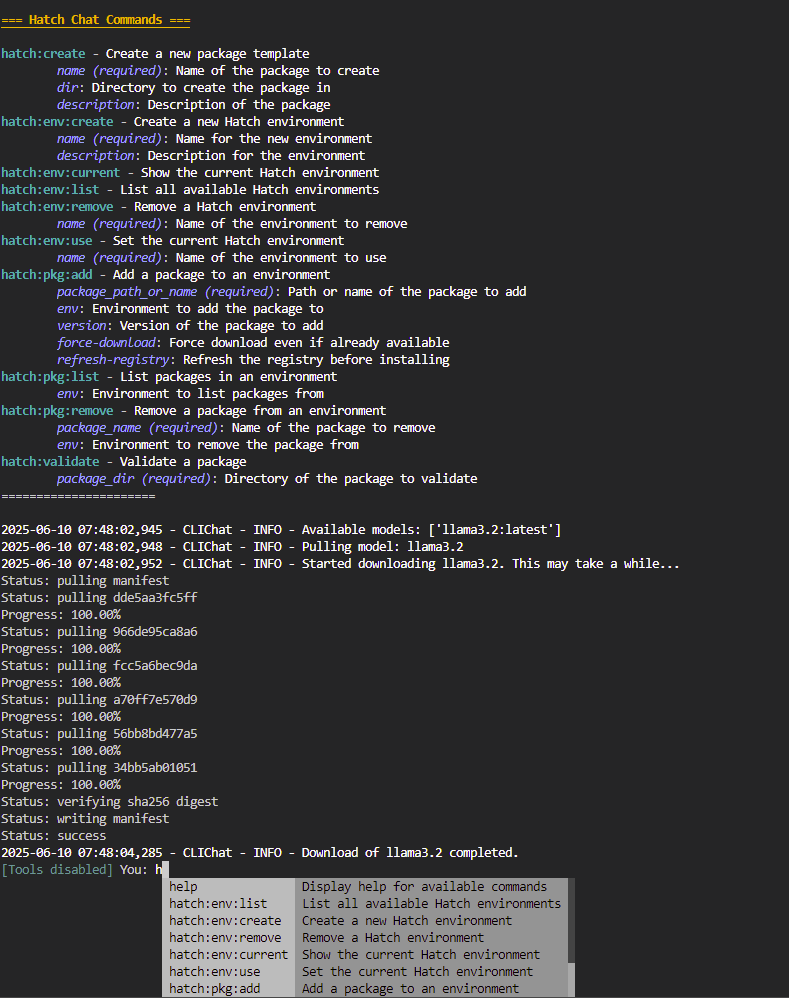
You can receive help about all available commands by writing help in the chat. Details about the commands are also available in the documentation
To close Hatchling, type:
[Tools disabled] You: quit
or
[Tools disabled] You: exit
Both commands have the same effect and are aliases.
Exiting the container's bash shell:
After you are done inside the container (for example, after running Hatchling), you can exit the bash shell in two ways:
- Type
exitand press Enter - Or press
Ctrl-D
Both methods will close your shell session and return you to your host terminal.
Stopping the Hatchling container:
To stop the background Hatchling container after you have exited all sessions:
docker-compose stop hatchling
This will stop the container but keep its data and state. You can start it again later with docker-compose start hatchling.
Restarting Hatchling container:
To restart the background container and enter it again:
docker-compose start hatchling
docker-compose exec --user HatchlingUser hatchling bash
# Then run:
hatchling
Deleting Hatchling container:
[!Warning] This will remove the container and its installed dependencies. However, Hatchling-related data such as environments and packages remain accessible at the
HATCH_HOST_CACHE_DIRas shown in the prior table.
To remove the container:
docker-compose rm hatchling
You can print the help about all available commands by writing help in the chat. Details about the commands are also available in the documentation
Previous: Docker Setup | Next: Chat Commands